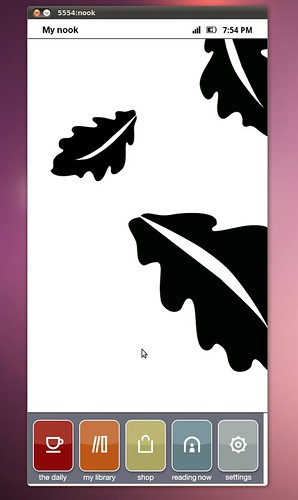
I was able to build an emulator for Nook version 1.2. See my
previous post for the prerequisites. Basically you need some utilities installed: smali, baksmali, unyaffs, and mkyaffs2image. You also need the Android SDK installed on your computer.
Here are the steps:
1: download the
nook 1.2 soft-root image from
nookdevs. For the rest of this post I assume you have copied it into the directory ~/nook_dev/ and we will be working on it from there.
2. extract the bravo_update.dat, cd into it and extract root.tgz
mv bravo_update.dat bravo_update-1.2.tar.gz
tar xvzf bravo_update-1.2.tar.gz
3. extract root.tgz
cd Firmware_Update
tar xvzf root.tgz
cd root
4. cd into system/framework and unjar services.jar
cd system/framework/
jar xvf services.jar
5. disassemble the classes.dex file inside services.jar
baksmali classes.dex
6. vi out/com/android/server/ServerThread.smali
search for a line that contains
if-lt v0, v1, :cond_309
delete that line.
7. reassemble out/ directory
smali out/
8. copy the new out.dex over the old classes.dex and re-jar services.jar
mv out.dex classes.dex
jar cvf services.jar classes.dex
Now we are going to build an android AVD, so we can extract a single file to use back in this system.
9. if your android SDK tools are in your path Run,
android
else find the android command and run it, or run it from eclipse.
This starts the Android SDK and AVD Manager. To create a new AVD, click New...
Name: nook
Target: Android 1.5
Size:
Skin: click Resolution, and fill in 488 x 944
click "Create AVD".
Then click "Details" to see where it was created. It should be at ~/.android/avd/nook.avd
10. unyaffs the system.img and grab a file
cd ~/nook_dev/
mkdir sys_img
cd sys_img
cp ~/android-sdk-linux_86/platforms/android-3/images/system.img .
unyaffs system.img
cp lib/libaudioflinger.so ~/nook_dev/Firmware_Update/Firmware_Update/system/lib/libaudioflinger.so
11. re-create the system.img with the new audio file.
cd ~/nook_dev/Firmware_Update/Firmware_Update/
mkyaffs2image ./system/ system.img
this creates a new system.img
12. Sketchy step where you overwrite the good Android 1.5 platform system.img in your Android SDK with this new one.
mv ~/android-sdk-linux_86/platforms/android-3/images/system.img ~/android-sdk-linux_86/platforms/android-3/images/good.img
cp ~/nook_dev/Firmware_Update/Firmware_Update/system.img ~/android-sdk-linux_86/platforms/android-3/images/system.img
Remember to change this back later if you want to do non-nook related Android Development.
13. run the emulator!
emulator @nook -shell -show-kernel -verbose
