Showing posts with label emacs. Show all posts

Saturday, July 9, 2011

Cool Things to do in Emacs' Dired Mode

Delete some files in the Downloads folder

My Downloads folder is always out of control. There are always a ton of pdf files that I opened once in a browser but don't need to save. It's a pain to open a GUI file navigator, like Nautilus, and double click on each pdf file to view it and see if it should be tossed. However with Emacs, trimming my Downloads directory of old files is quick and easy.

Viewing Pdfs in Emacs

If you see a pdf with an uninformative name like 2010-09.pdf just hit <enter> when the cursor is on the file name, (when the file name is at point). Emacs will open the pdf in a new buffer. Once you have viewed the pdf and have decided its face you can quickly kill the pdf buffer with 'k' and you'll be returned to the directory. Now, if the pdf is unimportant, queue it to be deleted with 'd'. If you want to keep the file, but give it a better name, type 'R' to rename it. To unqueue a file for deletion, use 'u'. And finally to delete all the files currently queued for deletion, type 'x'.
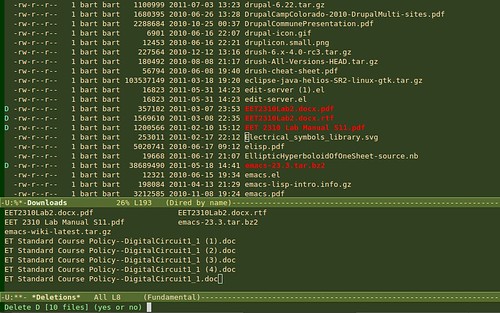
Dired mode emacs

Delete old Emacs backup files

If you have a lot of backup files that emacs created with ~ appended to the file name, you can quickly queue them all for deletion by typing '~'.

Here's the List of Directory Organizing Commands

key combocommand
<enter>open file at point
dQueue File For Deletion
uUnqueue File
~Queue Backup Files for Del
xeXecute Queued Delete Jobs
RRename File
kKill PDF Buffer

Edit Zip'd or Tar-gz'd archives in place

If you need to edit a file inside a zip or tar archive, simply open the archive by hitting <enter> on the name in Dired mode, then click on the file. Edit the file and save it with 'C-x C-s', and then do another C-x C-s inside the zip buffer to save the archive with the file changes. The archive will be compressed again with your changes.

OMG!: Change File Owner, Group, Mode

key combocommand
Ochange owner
Mchange mode
Gchange group
Zcompress file

Encrypt, Decrypt Files

Use ':e' to encrypt the file at point. Emacs will ask who you want to encrypt the file for (ie whose public key to use to encrypt the file.) You can also encrypt the file symmetrically with a password. Once the file is encrypted, there will be two files in the directory: the original file and the encrypted file with '.gpg' added to the file name.

Decrypt

To open the symmetrically encrypted file, click on its name and you will be prompted for a password. You can also type ':d' when the filename is at point.

EasyPG Assistant Docs

The program that is used to encrypt the file's is EasyPG Assistant. EasyPG Assistant Manual

Get More Help

Type 'C-hm' (describe mode) while in dired-mode, to pop open a help buffer, with a description of dired mode and a list of commands.

All Key Combinations named in post

key combocommand
dmark file for deletion
uunmark file
xeXecute queued deletions
Rrename/move file
Ochange owner
Mchange mode
Gchange group
Zcompress file
yshow only certain file type
wcopy file name
RETopen file at point
kif in pdf buffer, kill
C-x C-sSave file or archive
iinsert sub-directory
~mark all backup files for deletion
Cool Things to do in Emacs' Dired Mode

Thursday, May 19, 2011

Zombies, Emacs and Orgmode

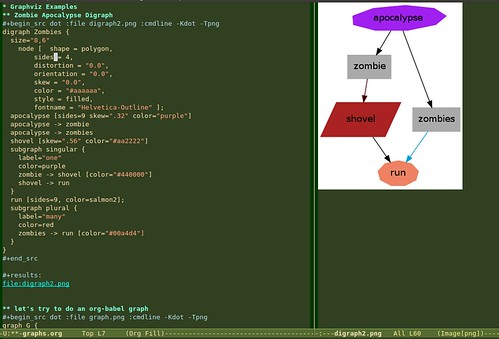
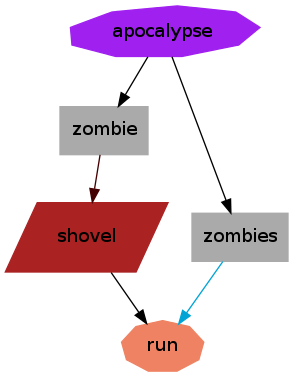
Zombie Graph with Emacs and Graphviz Zombie Apocalypse Digraph

I was playing around with Graphviz inside orgmode inside Emacs. Come the Zombie Apocalypse I'll be prepared, thanks to Emacs and Orgmode. Here's the Graphviz src:

digraph D {
  size="8,6"
  node [shape = polygon,
        sides = 4,
        distortion = "0.0",
        orientation = "0.0",
        skew = "0.0",
        color = "#aaaaaa",
        style = filled,
        fontname = "Helvetica-Outline" ];
  apocalypse [sides=9 skew=".32" color="purple"]
  apocalypse -> zombie
  apocalypse -> zombies
  shovel [skew=".56" color="#aa2222"]
  subgraph singular {
    label="one"
    color=purple
    zombie -> shovel [color="#440000"]
    shovel -> run
  }
  run [sides=9, color=salmon2];
  subgraph plural {
    label="many"
    color=red
    zombies -> run [color="#00a4d4"]
  }
}
save this file as zombies.gv, then run: graphviz zombies.gv.
If you are interested in graphviz, you can click on any graph in this gallery and see the graphviz source for the graph.

I wrote the graph source first in Emacs in Orgmode 7.5. Here's the src for experimenting with graphs in orgmode using the new org-babel, which lets you evaluate code in special code sections right inside of Emacs:

#+begin_src dot :file digraph2.png :cmdline -Kdot -Tpng  
digraph D {
  size="8,6"
 node [ shape = polygon,
  sides = 4,
  distortion = "0.0",
  orientation = "0.0",
  skew = "0.0",
  color = "#aaaaaa",
  style = filled,
  fontname = "Helvetica-Outline" ];
  apocalypse [sides=9 skew=".32" color="purple"]
  apocalypse -> zombie
  apocalypse -> zombies
  shovel [skew=".56" color="#aa2222"]
  subgraph singular {
    label="one"
    color=purple
    zombie -> shovel [color="#440000"]
    shovel -> run
  }
  run [sides=9, color=salmon2];
  subgraph plural {
    label="many"
    color=red
    zombies -> run [color="#00a4d4"]
  }
}
#+end_src
Then inside the buffer you can evaluate the code with "C-c C-c", and you can see the results of evaluating the code with "C-c C-o". This is made possible by Org-babel, a cool tool that allows you to run scripts from different languages in a single Org-mode buffer. Not only that but you can pipe output from one code block to another code block written in a different language. I will have more blog posts about this in the future. Org-babel is a part of Org-mode since Org-mode 7.x or so. Exciting stuff!

Further Reading


Org-babel Documentation
Graphviz
Edited with the emacs-chrome plugin

Monday, January 3, 2011

Emacs Window Commands

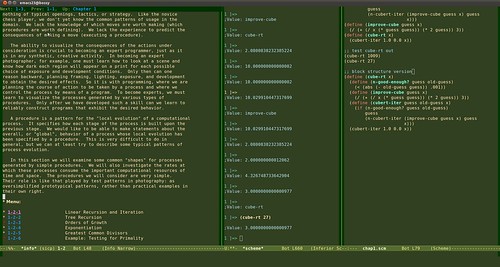
I recently bought a new large monitor, which opened the possibility of using Emacs with multiple, side-by-side windows. Which is brilliant by the way! Since I plugged it in, I've been "C-x 3"-ing like a madman. My new favorite way to learn programming is having an info file open in the left window and in the right window having a scheme (or python) prompt open. That is what I am doing now working on the Structure and Interpretation of Computer Programs. Luckily there was an info file available. I'm trying to think of a simple way to translate my programming epubs or pdfs into info files.

SICP with Emacs

Anyways on to todays topic. Emacs window commands!

The first thing to keep in mind, is the difference between windows and frames in emacs. To emacs: a window is any portal to a buffer. if you type in "C-x 2" in emacs and your view splits in half. These two portals are known as windows. What we usually call a new window, is known as a frame to emacs. So when you type in Ctrl-n in your browser and a new window pops open, in Emacsia, this is known as a new frame.

Open another window:

C-x 2 open another vertical window.
C-x 3 open another horizontal window.
C-x 4 b open a buffer in the other window
C-x 4 f open a new file in the other window.
C-x 1 close all other windows, leave current window open.
C-x 0 close current window, switch to other window.
C-x o move to other window

Positioning windows:

C-x + balance windows. This balances the size of all open windows.
C-x { widen current window.
C-x } narrow current window.
C-u C-x { widen current window by 4 columns.
C-u C-x } narrow current window by 4 columns.

Scroll other window:

M-C-v scroll other window

Tuesday, December 28, 2010

This Week's Emacs Commands

If you've ever played keywiz on Emacs: "M-x keywiz", you were probably eating humble-hacker-pie by the end of the game. (For the uninitiated, keywiz is a game in emacs that's asks 10 random questions about key-bindings for some times obscure emacs commands.) So far my top score is 4 (out of 10).

So what is a novice to do? I've decided to write commands I want to learn on sticky notes on my monitor until I memorize them.

So, without further ado, here's this weeks list of new commands:

M-g g
goto line. This command will ask for a line number and take you there in the current file.

C-x v=
vc-diff. This command will show a diff between current file and HEAD in whatever Version Control System you are using.

C-x vv
vc-next-action. This command will perform the next appropriate VCS command, such as add current file to staging, or commit.

C-M-\
indent-region. If there is a defined region, this command will indent it.

C-M-; comment-region. If there is a defined region, this command will comment the region out. (or uncomment a commented out region.)

A note: to define a region. Do a C-[spc] at the beginning of the region and then move to the end of the region however you'd like (arrow keys, C-n, C-f, C-v). If you can't see the regions add the following to your .emacs file: (transient-mark-mode 1).

Second note, in the above key combination, capital C, means hold the Ctrl key, capital M, means hold the Alt key. If there are dashes between letters: type them together (or with C or M hold the Ctrl or Alt key while typing the other key. So with M-g g: Hold Alt while typing g, let go and then type g again.)

Now off to work on a new version of keywiz, perhaps keywiz-jr!

Tuesday, December 21, 2010

Using Gnu Screen

I've been a long time user of Linux and the command line, but not until recently have I used the amazing program: screen. Screen is a terminal multiplexor. This means you can have multiple sessions open at the same time (even over a single ssh connection) and flip back and forth between them.
Prior to discovering screen I'd often be ssh'd into a remote server editing a file when the ssh session would time out or drop and I'd have to quickly open up a new terminal and start editing the file again. Now while using screen, the screen session itself is independent of the ssh session. So if my ssh connection flakes out, I start up a new terminal, ssh into the server, "reattach" the previous screen session to this new terminal and all of my work: my emacs window, my bash jobs, etc are still running in the screen session!

How to start screen

bart@home: $ ssh boris@remote-server-in-distant-vladivostok
boris@distant-vlad: $ screen

If you already have a screen session running on the remote server you can reattach with:
boris@distant-vlad: $ screen -r

I like to use the options: -raAd, mostly because it looks raad.
boris@distant-vlad: $ screen -raAd

r: means reattach previous session
a: include all capabilities (with some minor exceptions) in each window's termcap
A: Adapt the sizes of all windows to the size of the current terminal
d: Forceably detach any sessions that are still holding on to this (your workstation at work for instance).

Create new sessions

Once inside screen to start a new session use the keyboard combination: C-a c. That is, "Ctrl-a c". (the mnemonic is c for "create window") This will create a new window move you to it. To move back to the previous window, do a C-a C-a. You can also use the keyboard combos C-a n and C-a p to move to the Next and Previous windows. Or you can move to a window directly using its number with C-a 3 (or whatever number it is.)

customizing screen with .screenrc

If you are an emacs user or if you use the emacs shortcuts on the command line, than you know that C-a is already used as the command to bring the cursor to the beginning of the line. So what to do? You can change the default keyboard bindings in the .screenrc configuration file in your home directory. If it doesn't already exist, create it and add the following line:
escape ^Bb

or whatever you want to use as the control sequence. This will change the control sequence from C-a to C-b, other people use other keys, some use the backslash "\" instead. So now if you have changed to C-b, then to toggle between windows use:
C-b C-b and so on...

Another good thing to add to the screenrc is code for a modeline, so you can see the available windows:
caption string "%?%F%{= Bk}%? %C%A %D %d-%m-%Y %{= kB} %t%= %?%F%{= Bk}%:%{= wk}%? %n "
hardstatus alwayslastline
hardstatus string '%{= kG}[ %{G}%H %{g}][%= %{= kw}%?%-Lw%?%{r}(%{W}%n*%f%t%?(%u)%?%{r})%{w}%?%+Lw%?%?%= %{g}][%{B} %d/%m %{W}%c %{g}]'

This code will add a modeline to the bottom of the terminal that tells you which window you are in and also the numbers or names of the sessions.

Irssi is Screen's BFF

Best of all you can keep a session of Irssi (an irc client) running at all times in a screen session and always be up to date with your favorite IRC channels.

Additional Screen resources

Screen Quick Reference
Stayin' Alive with Screen
Power Sessions with Screen
Guide to Using Irssi with Screen