Tuesday, February 21, 2012

Vim Tip: yanking or deleting a big chunk of text

I have a large mysqldump backup file of all databases on a server but I need a sql backup for a single database. So I wanted to break up the dump file into smaller pieces. This is one solution I came up with using vim.

1. I opened the dump file and a newly created file for the single database:

vim db-dump.sql newdumpfile.sql

2. I searched for the start of the database section by searching for:

/USE `databasename`
where "databasename" is the specific database I want to grab.

3. Once I was at the correct spot in the database dump I noticed that each individual database section starts with a comment:

---
--- Current Database: `databasename`
--- 
Once again, "databasename" is a specific database name.

4. So I yanked all lines until the next database section with the following vim command:

y/Current Database/
This tells vim to yank all lines until it reaches the next match for the regular expression "Current Database". Vim will report how many lines have been yanked.

5. Next, switch to the new file and paste the lines that were yanked.

:bn
p
The vim command :bn, means switch to the next buffer. You could also run the command ":e newdumpfile.sql" to create and edit a new sql file. The next vim command "p" is the paste command, it pastes into the current buffer the last yanked hunk of text. In this case it would be the lines you just yanked, the single database dump.

6. Finally save the changes to the new file with :wq

7. If you'd like to reload the database into mysql use the following:

mysql -p < newdumpfile.sql

Saturday, July 9, 2011

Cool Things to do in Emacs' Dired Mode

Delete some files in the Downloads folder

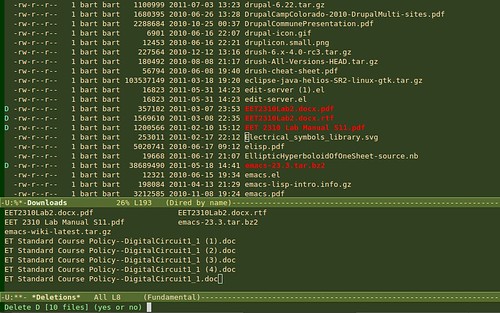
My Downloads folder is always out of control. There are always a ton of pdf files that I opened once in a browser but don't need to save. It's a pain to open a GUI file navigator, like Nautilus, and double click on each pdf file to view it and see if it should be tossed. However with Emacs, trimming my Downloads directory of old files is quick and easy.

Viewing Pdfs in Emacs

If you see a pdf with an uninformative name like 2010-09.pdf just hit <enter> when the cursor is on the file name, (when the file name is at point). Emacs will open the pdf in a new buffer. Once you have viewed the pdf and have decided its face you can quickly kill the pdf buffer with 'k' and you'll be returned to the directory. Now, if the pdf is unimportant, queue it to be deleted with 'd'. If you want to keep the file, but give it a better name, type 'R' to rename it. To unqueue a file for deletion, use 'u'. And finally to delete all the files currently queued for deletion, type 'x'.

Dired mode emacs

Delete old Emacs backup files

If you have a lot of backup files that emacs created with ~ appended to the file name, you can quickly queue them all for deletion by typing '~'.

Here's the List of Directory Organizing Commands

key combocommand
<enter>open file at point
dQueue File For Deletion
uUnqueue File
~Queue Backup Files for Del
xeXecute Queued Delete Jobs
RRename File
kKill PDF Buffer

Edit Zip'd or Tar-gz'd archives in place

If you need to edit a file inside a zip or tar archive, simply open the archive by hitting <enter> on the name in Dired mode, then click on the file. Edit the file and save it with 'C-x C-s', and then do another C-x C-s inside the zip buffer to save the archive with the file changes. The archive will be compressed again with your changes.

OMG!: Change File Owner, Group, Mode

key combocommand
Ochange owner
Mchange mode
Gchange group
Zcompress file

Encrypt, Decrypt Files

Use ':e' to encrypt the file at point. Emacs will ask who you want to encrypt the file for (ie whose public key to use to encrypt the file.) You can also encrypt the file symmetrically with a password. Once the file is encrypted, there will be two files in the directory: the original file and the encrypted file with '.gpg' added to the file name.

Decrypt

To open the symmetrically encrypted file, click on its name and you will be prompted for a password. You can also type ':d' when the filename is at point.

EasyPG Assistant Docs

The program that is used to encrypt the file's is EasyPG Assistant. EasyPG Assistant Manual

Get More Help

Type 'C-hm' (describe mode) while in dired-mode, to pop open a help buffer, with a description of dired mode and a list of commands.

All Key Combinations named in post

key combocommand
dmark file for deletion
uunmark file
xeXecute queued deletions
Rrename/move file
Ochange owner
Mchange mode
Gchange group
Zcompress file
yshow only certain file type
wcopy file name
RETopen file at point
kif in pdf buffer, kill
C-x C-sSave file or archive
iinsert sub-directory
~mark all backup files for deletion
Cool Things to do in Emacs' Dired Mode

Thursday, May 19, 2011

Zombies, Emacs and Orgmode

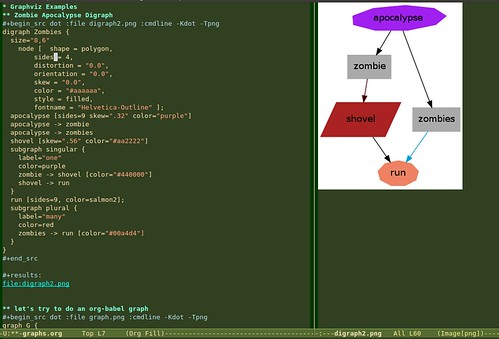
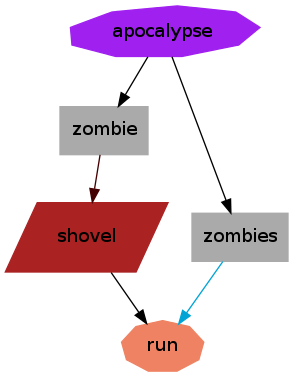
Zombie Graph with Emacs and Graphviz Zombie Apocalypse Digraph

I was playing around with Graphviz inside orgmode inside Emacs. Come the Zombie Apocalypse I'll be prepared, thanks to Emacs and Orgmode. Here's the Graphviz src:

digraph D {
  size="8,6"
  node [shape = polygon,
        sides = 4,
        distortion = "0.0",
        orientation = "0.0",
        skew = "0.0",
        color = "#aaaaaa",
        style = filled,
        fontname = "Helvetica-Outline" ];
  apocalypse [sides=9 skew=".32" color="purple"]
  apocalypse -> zombie
  apocalypse -> zombies
  shovel [skew=".56" color="#aa2222"]
  subgraph singular {
    label="one"
    color=purple
    zombie -> shovel [color="#440000"]
    shovel -> run
  }
  run [sides=9, color=salmon2];
  subgraph plural {
    label="many"
    color=red
    zombies -> run [color="#00a4d4"]
  }
}
save this file as zombies.gv, then run: graphviz zombies.gv.
If you are interested in graphviz, you can click on any graph in this gallery and see the graphviz source for the graph.

I wrote the graph source first in Emacs in Orgmode 7.5. Here's the src for experimenting with graphs in orgmode using the new org-babel, which lets you evaluate code in special code sections right inside of Emacs:

#+begin_src dot :file digraph2.png :cmdline -Kdot -Tpng  
digraph D {
  size="8,6"
 node [ shape = polygon,
  sides = 4,
  distortion = "0.0",
  orientation = "0.0",
  skew = "0.0",
  color = "#aaaaaa",
  style = filled,
  fontname = "Helvetica-Outline" ];
  apocalypse [sides=9 skew=".32" color="purple"]
  apocalypse -> zombie
  apocalypse -> zombies
  shovel [skew=".56" color="#aa2222"]
  subgraph singular {
    label="one"
    color=purple
    zombie -> shovel [color="#440000"]
    shovel -> run
  }
  run [sides=9, color=salmon2];
  subgraph plural {
    label="many"
    color=red
    zombies -> run [color="#00a4d4"]
  }
}
#+end_src
Then inside the buffer you can evaluate the code with "C-c C-c", and you can see the results of evaluating the code with "C-c C-o". This is made possible by Org-babel, a cool tool that allows you to run scripts from different languages in a single Org-mode buffer. Not only that but you can pipe output from one code block to another code block written in a different language. I will have more blog posts about this in the future. Org-babel is a part of Org-mode since Org-mode 7.x or so. Exciting stuff!

Further Reading


Org-babel Documentation
Graphviz
Edited with the emacs-chrome plugin

Tuesday, May 3, 2011

Updated the Scuttle Plugin to work with Firefox 4

I updated the Scuttle firefox plugin to work with Firefox 4. This was the one utility that was holding me back from upgrading to Firefox 4. I created a github repository. for the project. Feel free to fork the project. Its a good simple plugin if you’d like to learn how to write one.

The original scuttle firefox plugin hasn’t been upgraded since 2007. The version in This updated version is compatible with Firefox 4. You can view the source or fork the project at my github repository. or you can download the plugin directly: scuttle-0.4.2-firefox+fl.xpi

Scuttle is an open source Website Bookmarking System. I switched to it for my bookmarking needs after Yahoo! announced they were shutting down delicious.com. The cool thing about Scuttle is that its open source, (its written in PHP.) so you can download the source and run it on your own web server and if there's a new feature you want for your social bookmarking you can write it, also since it runs on your own server, you can be sure that the service will never end (just make regular backups.) The bad news is that you need to have a web server to run it. If you are just interested in an alternative to delicious you can try pinboard.in.

Also the credit goes to Marcus Campbell, original developer of scuttle and the scuttle plugin and also to Andreas Keller for originally updating the scuttle plugin for Firefox 3.

Saturday, February 26, 2011

Updating Drupal Sites with Patches and Drush

I found a couple of drupal sites on a web server that were badly in need of security updates. They are no longer being maintained by a developer but they are still in use by a user community so I didn't like the idea of taking them down just because they are a security vulnerability, as they still have a great deal of value for people who use them. So I decided to update them with the patches that are available at fuerstnet.

If you follow the link above to fuerstnet, the site provides patches from all of the minor versions of drupal up to the most recent security level. So, if you check your drupal site's status at "admin/reports/status" (in drupal 6). And you see that you're drupal version is currently drupal 6.14. (That's 4 security releases out of date!) Then you can go to fuerstnet and download the drupal-6.14-to-6.18.patch security fixes only patch, or you can download the 6.14-to-to-6.20.patch (which includes bug fixes + security fixes.).

The first thing you need to do is make sure you have a current back-up of the database and the drupal file system.

1. Quick back-up of the file system:
cp -R DRUPAL_ROOT DRUPAL_ROOT-bk
2. Copy of database:
mysqldump -uDB-USER -p DB-NAME > ~/DRUPAL-SITE-NAME.db-backup-DATE.sql

or you can do the database back-up with drush:
drush sql-dump --result-file=~/DRUPAL-SITE-NAME.db_backup-DATE.sql
Of course, you need to replace all of the ALL_CAPS names up above with the names that correspond with your site. Now on to the update procedure:

The procedure, as outlined at fuerstnet, is:
1. copy the patch into you're drupal root directory.
2. put your site into maintenance mode. "admin/settings/site-maintenance" (in drupal 6)
3. cd into the DRUPAL_ROOT directory.
4. patch -p1 --dry-run < DRUPALPATCH
(replace DRUPALPATCH with the name of your patch, ie drupal-6.14-to-6.20.patch) if you do not see any errors in the output of the patch command, then you can run the command again for real.
5. patch -p1 < DRUPALPATCH
Next you have to run update.php, which if you have drush you can run like so:
6. drush updatedb
or you can visit http://YOUR-DRUPAL-SITE/update.php
7. next: test your site, update any modules that need updating and then don't forget to pull your site out of maintenance mode.

Another possibility is to run the upgrades in drush with the shell command:
> drush pm-update --security-only

This command will update your site with any available security updates. It will first show you a list of updates that are available and ask if you if you want to proceed. You must answer y or n. This command is great, because you can run it in the root directory of any of your drupal sites and it will show you which updates are available. Also if you have site-aliases set up, you can run it against all of your aliases one at a time and you don't have to leave the comfort of your /home directory!

> drush @dev pm-update --security-only
(where @dev is an alias name for one of your sites.)

Of course you can run the update command without the --security-only and it will offer to update all of your modules, themes and core drupal files.

[However I ran into trouble with this approach as it updated the themes as well on one of the sites I was updating and the original site developer had customized the theme instead of creating a new them and customizing that! So I restore the theme from backup. Of course when drush updates modules and themes it backs up the old ones in a directory outside the drupal directory, so if there is a mishap, such as overwriting a customized theme, you can restore and clear cache to restore the old theme. Although there is that safety net, I still now prefer to update security-fixes only at first, and then run non-security modules fixes one at a time and run the theme fixes manually. Schwew, big aside.]

After running the drush pm-update, which can be shortened to drush up, I like to run a quick:
> drush updatedb
to make sure the database has been updated properly, and:
> drush cc all
to make sure the caches are cleared.

And once you have all of your sites aliased, it is simple to ssh into your web server and run the drush up --security-only command once a week to check that all of your sites are up to date with the security fixes.

Monday, January 3, 2011

Emacs Window Commands

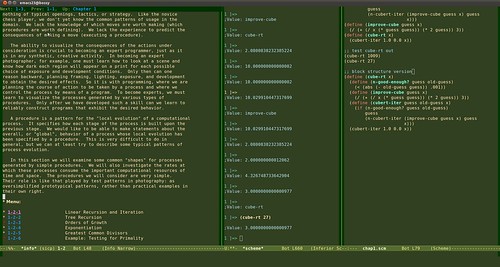
I recently bought a new large monitor, which opened the possibility of using Emacs with multiple, side-by-side windows. Which is brilliant by the way! Since I plugged it in, I've been "C-x 3"-ing like a madman. My new favorite way to learn programming is having an info file open in the left window and in the right window having a scheme (or python) prompt open. That is what I am doing now working on the Structure and Interpretation of Computer Programs. Luckily there was an info file available. I'm trying to think of a simple way to translate my programming epubs or pdfs into info files.

SICP with Emacs

Anyways on to todays topic. Emacs window commands!

The first thing to keep in mind, is the difference between windows and frames in emacs. To emacs: a window is any portal to a buffer. if you type in "C-x 2" in emacs and your view splits in half. These two portals are known as windows. What we usually call a new window, is known as a frame to emacs. So when you type in Ctrl-n in your browser and a new window pops open, in Emacsia, this is known as a new frame.

Open another window:

C-x 2 open another vertical window.
C-x 3 open another horizontal window.
C-x 4 b open a buffer in the other window
C-x 4 f open a new file in the other window.
C-x 1 close all other windows, leave current window open.
C-x 0 close current window, switch to other window.
C-x o move to other window

Positioning windows:

C-x + balance windows. This balances the size of all open windows.
C-x { widen current window.
C-x } narrow current window.
C-u C-x { widen current window by 4 columns.
C-u C-x } narrow current window by 4 columns.

Scroll other window:

M-C-v scroll other window

Tuesday, December 28, 2010

This Week's Emacs Commands

If you've ever played keywiz on Emacs: "M-x keywiz", you were probably eating humble-hacker-pie by the end of the game. (For the uninitiated, keywiz is a game in emacs that's asks 10 random questions about key-bindings for some times obscure emacs commands.) So far my top score is 4 (out of 10).

So what is a novice to do? I've decided to write commands I want to learn on sticky notes on my monitor until I memorize them.

So, without further ado, here's this weeks list of new commands:

M-g g
goto line. This command will ask for a line number and take you there in the current file.

C-x v=
vc-diff. This command will show a diff between current file and HEAD in whatever Version Control System you are using.

C-x vv
vc-next-action. This command will perform the next appropriate VCS command, such as add current file to staging, or commit.

C-M-\
indent-region. If there is a defined region, this command will indent it.

C-M-; comment-region. If there is a defined region, this command will comment the region out. (or uncomment a commented out region.)

A note: to define a region. Do a C-[spc] at the beginning of the region and then move to the end of the region however you'd like (arrow keys, C-n, C-f, C-v). If you can't see the regions add the following to your .emacs file: (transient-mark-mode 1).

Second note, in the above key combination, capital C, means hold the Ctrl key, capital M, means hold the Alt key. If there are dashes between letters: type them together (or with C or M hold the Ctrl or Alt key while typing the other key. So with M-g g: Hold Alt while typing g, let go and then type g again.)

Now off to work on a new version of keywiz, perhaps keywiz-jr!

Tuesday, December 21, 2010

Using Gnu Screen

I've been a long time user of Linux and the command line, but not until recently have I used the amazing program: screen. Screen is a terminal multiplexor. This means you can have multiple sessions open at the same time (even over a single ssh connection) and flip back and forth between them.
Prior to discovering screen I'd often be ssh'd into a remote server editing a file when the ssh session would time out or drop and I'd have to quickly open up a new terminal and start editing the file again. Now while using screen, the screen session itself is independent of the ssh session. So if my ssh connection flakes out, I start up a new terminal, ssh into the server, "reattach" the previous screen session to this new terminal and all of my work: my emacs window, my bash jobs, etc are still running in the screen session!

How to start screen

bart@home: $ ssh boris@remote-server-in-distant-vladivostok
boris@distant-vlad: $ screen

If you already have a screen session running on the remote server you can reattach with:
boris@distant-vlad: $ screen -r

I like to use the options: -raAd, mostly because it looks raad.
boris@distant-vlad: $ screen -raAd

r: means reattach previous session
a: include all capabilities (with some minor exceptions) in each window's termcap
A: Adapt the sizes of all windows to the size of the current terminal
d: Forceably detach any sessions that are still holding on to this (your workstation at work for instance).

Create new sessions

Once inside screen to start a new session use the keyboard combination: C-a c. That is, "Ctrl-a c". (the mnemonic is c for "create window") This will create a new window move you to it. To move back to the previous window, do a C-a C-a. You can also use the keyboard combos C-a n and C-a p to move to the Next and Previous windows. Or you can move to a window directly using its number with C-a 3 (or whatever number it is.)

customizing screen with .screenrc

If you are an emacs user or if you use the emacs shortcuts on the command line, than you know that C-a is already used as the command to bring the cursor to the beginning of the line. So what to do? You can change the default keyboard bindings in the .screenrc configuration file in your home directory. If it doesn't already exist, create it and add the following line:
escape ^Bb

or whatever you want to use as the control sequence. This will change the control sequence from C-a to C-b, other people use other keys, some use the backslash "\" instead. So now if you have changed to C-b, then to toggle between windows use:
C-b C-b and so on...

Another good thing to add to the screenrc is code for a modeline, so you can see the available windows:
caption string "%?%F%{= Bk}%? %C%A %D %d-%m-%Y %{= kB} %t%= %?%F%{= Bk}%:%{= wk}%? %n "
hardstatus alwayslastline
hardstatus string '%{= kG}[ %{G}%H %{g}][%= %{= kw}%?%-Lw%?%{r}(%{W}%n*%f%t%?(%u)%?%{r})%{w}%?%+Lw%?%?%= %{g}][%{B} %d/%m %{W}%c %{g}]'

This code will add a modeline to the bottom of the terminal that tells you which window you are in and also the numbers or names of the sessions.

Irssi is Screen's BFF

Best of all you can keep a session of Irssi (an irc client) running at all times in a screen session and always be up to date with your favorite IRC channels.

Additional Screen resources

Screen Quick Reference
Stayin' Alive with Screen
Power Sessions with Screen
Guide to Using Irssi with Screen

Thursday, July 29, 2010

Setting Up a Web Enabled Lending Library

Setting Up a Web Enabled Lending Library


I started cataloging books for a small community center's lending
library at librarything.com. Librarything.com is a great web site
that I highly recommend. If most of your books have ISBNs and you can
borrow someone's barcode scanner, cataloging books at Librarything is
a snap: on the "add books page" you scan a books ISBN and all of its
information (Title, Author, book cover) will be added by Librarything
for you. Of course if you don't have a bar code scanner or there is
no ISBN, you simply type in part of the title or author and select the
book from a list of possible matches, this is a bit slower, but
perfectly adequate if you are inputting a smaller library.

Once all of the books are added, the social networking goodness
begins! You're library has its own mini-site at Librarything, with a
publicly available catalog: Build Up Books catalog and profile:
Build Up Books profile. So for a community center, you can send out the URL, and anyone can search the catalog for books they find of interest.

The one problem with this system, is there isn't a robust system for
checking out books. Some libraries have adapted an informal system of
tagging books as "checked out" and in the private comments (only
visible to the administrator) added the borrowers contact
information. This is somewhat acceptable, but first: you would have
to give any volunteers access to all of your Librarything account's
permissions (you get all or nothing as far admin rights goes on
Librarything). Second there is no way to tell when the book was
checked out, when it is due back, and also no way to sort by which
books are currently overdue. So I thought I would look into importing
the library, once cataloged, into a drupal web site.


Exporting Library from Librarything


Librarything has excellent importing and exporting facilities. To
export, sign in to your account and then go to
http://librarything.com/more/import. On that page there are links for
downloading your catalog as either a comma separated csv file or a tab
delimited text file.


Downloading User Uploaded Book Covers


Librarything has over 1,000,000 user uploaded book covers, and it
makes them available for free. You need to a developer's key to
access them and there are some restrictions: you can only download
1000 per day and one per second. So with these understandable
restrictions, I decided it would be best to download the book covers
and store them locally. So yesterday I wrote a python script to
download all of the book covers for our library.


The Python Script


I will add a link at the bottom to the script on my
Github Repository. So the script I wrote searches through a
librarything csv file, finds all of the ISBNs and downloads the book
covers from Librarything.


import re, urllib, csv,time

CSV_FILE ='~/Downloads/LibraryThing_export.csv'
IMG_DIR ='~/img/'
DEV_KEY = 'YOUR_LIBRARYTHING_DEV_KEY'
IMG_URL = "http://covers.librarything.com/devkey/" + DEV_KEY + "/large/isbn/"


I use 4 python libraries.

  • Re: for regular expressions to search for isbns.
  • urllib: for downloading the Book Cover from Librarything
  • csv: for creating a map data structure from a parsed csv file.
  • time: for limiting the downloads to one per second.

Also I add a couple of variables. The important one to change is
DEV_KEY which contains your librarything developers key. Also make
sure the CSV_FILE points at your downloaded CSV_FILE and the IMG_DIR
exists. Finally IMG_URL points to the web service on librarything
where you can download user submitted book covers, all you need to do
is slap an ISBN on the end of that URL and the URL will return either
a book cover, or a clear 1x1 gif if they do not have that cover.


# read in the Librarything Export File
lt_dict = csv.DictReader(open(CSV_FILE))
#loop through the rows of the dictionary
for row in lt_dict:
    # grab the ISBN dictionary field
    mystr = row["'ISBN'"]
    # search for a matching ISBN
    mymatch = re.match(r"\[(\d+)\]",mystr)
    # if no match, print the title to STDOUT
    if mymatch is None:
        print "blank isbn for: %s" % row["'TITLE'"]
    else:
        # grab the matching string, this is our ISBN!
        isbn = mymatch.group(1)
        # build the web service request URL
        myurl = IMG_URL + isbn
        # where we will store the downloaded Book cover image
        myfile = "%slarge_%s" % (IMG_DIR,isbn)
        # urlretrieve downloads the image and stores it locally
        urllib.urlretrieve(myurl,myfile)
        print "myurl: %s, myfile: %s" % (myurl,myfile)
        # sleep for 2 seconds
        time.sleep(2)


The hard work is done by csv.DictReader and urllib.urlretrieve.
DictReader takes a csv file, parses the first line of the file for
field names and creates a dictionary data type, so you can loop
through the rows and have access to the fields by name. Urlretrieve,
takes a URL and an optional file name and it grabs the file at the URL
and stores it locally as the filename you provided.

In a later blog post I will describe the Drupal end of this project:
creating a book CCK content type, importing data into Drupal custom
content types, and setting up the check out process.

Thursday, May 13, 2010

Nook 1.2 emulator

Nook 1.2 loaded up as an emulator I was able to build an emulator for Nook version 1.2. See my previous post for the prerequisites. Basically you need some utilities installed: smali, baksmali, unyaffs, and mkyaffs2image. You also need the Android SDK installed on your computer. Here are the steps: 1: download the nook 1.2 soft-root image from nookdevs. For the rest of this post I assume you have copied it into the directory ~/nook_dev/ and we will be working on it from there. 2. extract the bravo_update.dat, cd into it and extract root.tgz
mv bravo_update.dat bravo_update-1.2.tar.gz
tar xvzf bravo_update-1.2.tar.gz
3. extract root.tgz
cd Firmware_Update
tar xvzf root.tgz
cd root
4. cd into system/framework and unjar services.jar
cd system/framework/
jar xvf services.jar
5. disassemble the classes.dex file inside services.jar
baksmali classes.dex
6. vi out/com/android/server/ServerThread.smali search for a line that contains
if-lt v0, v1, :cond_309
delete that line. 7. reassemble out/ directory
smali out/
8. copy the new out.dex over the old classes.dex and re-jar services.jar
mv out.dex classes.dex
jar cvf services.jar classes.dex

Now we are going to build an android AVD, so we can extract a single file to use back in this system.

9. if your android SDK tools are in your path Run,
android
else find the android command and run it, or run it from eclipse. This starts the Android SDK and AVD Manager. To create a new AVD, click New... Name: nook Target: Android 1.5 Size: Skin: click Resolution, and fill in 488 x 944 click "Create AVD". Then click "Details" to see where it was created. It should be at ~/.android/avd/nook.avd 10. unyaffs the system.img and grab a file
cd ~/nook_dev/
mkdir sys_img
cd sys_img
cp ~/android-sdk-linux_86/platforms/android-3/images/system.img .
unyaffs system.img
cp lib/libaudioflinger.so ~/nook_dev/Firmware_Update/Firmware_Update/system/lib/libaudioflinger.so
11. re-create the system.img with the new audio file.
cd ~/nook_dev/Firmware_Update/Firmware_Update/
mkyaffs2image ./system/ system.img
this creates a new system.img 12. Sketchy step where you overwrite the good Android 1.5 platform system.img in your Android SDK with this new one.
mv ~/android-sdk-linux_86/platforms/android-3/images/system.img ~/android-sdk-linux_86/platforms/android-3/images/good.img 
cp ~/nook_dev/Firmware_Update/Firmware_Update/system.img ~/android-sdk-linux_86/platforms/android-3/images/system.img 
Remember to change this back later if you want to do non-nook related Android Development. 13. run the emulator!
emulator @nook -shell -show-kernel -verbose

Saturday, May 8, 2010

How to Build a Nook emulator

This post will walk you through building an Android Emulator for the Nook step-by-step in Eclipse and via the command-line. These instructions are based on the original instructions located at the nookdevs website.

Pre-requisites:


1. You need to have Eclipse running with the Android SDK. More information on that can be found here.
2. I'm assuming you are developing in a Linux-ish environment. I'm using the amazing Ubuntu Lucid Lynx.
3. download and set up the following tools: smali, baksmali, unyaffs, yaffs2image.

How I Set Up the command-line tools:


smali and baksmali. Description from the developer's site:
"smali/baksmali is an assembler/disassembler for the dex format used by dalvik, Android's Java VM implementation".
1. Download them into your ~/bin/ directory.
2. "chmod +x" the wrapper scripts (smali and baksmali)
3. rename the jar files: smali.jar and baksmali.jar.
cd ~/bin/
wget http://smali.googlecode.com/files/smali-1.2.2.jar
wget http://smali.googlecode.com/files/baksmali-1.2.2.jar
wget http://smali.googlecode.com/files/baksmali
wget http://smali.googlecode.com/files/smali
mv baksmali-1.2.2.jar baksmali.jar
mv smali-1.2.2.jar smali.jar
chmod +x smali
chmod +x baksmali


unyaffs description: Unyaffs is a program to extract files from a yaffs file system image.
1. download unyaffs into your
~/bin; chmod +x unyaffs;

mkyaffs2image:
1. download mkyaffs2image. I downloaded the yaffs2-binary.tar, untarred it and copied yaffs2/utils/mkyaffs2image to my ~/bin/ and chmod +x it.

Okay we have the tools and our environment is ready!


1. I'm assuming you already have Eclipse set up and running with the Android Development Kit. Nook runs on the cupcake 1.5 platform of Android. So first we have to make sure that the Android 1.5 Platform is installed. Assuming you downloaded the Android SDK into your home directory, run:
$ ~/android-sdk-linux_86/tools/android

This will start the Android SDK and AVD Manager. Click on Installed Packages and look for SDK Platform 1.5. If you do not see it, click on Available Packages and download and install it.

2. Grab the original 1.0.0 image from bn.com (mirrored here: multiupload).

3.Run
$ dd if=signed_bravo_update.1.0.0.dat of=signed-bravo-update.1.0.0.tar.gz bs=1 skip=152

This takes a while. You now have signed-bravo-update.1.0.0.tar.gz

4.Uncompress the new file: signed-bravo-update.1.0.0.tar.gz
$ tar xzvf signed-bravo-update.1.0.0.tar.gz

Now you have the uncompressed folder Firmware_Update,
$ cd Firmware_Update


5. Rename bravo_update.dat to bravo_update.tar.gz and extract it.

$ mv bravo_update.dat bravo_update.tar.gz
$ tar xvzf bravo_update.tar.gz

This uncompresses another Firmware_Update folder, cd in to it.
$ cd Firmware_Update

if you pwd, you'll be in Firmware_Update/Firmware_Update

6. Extract root.tgz

$ tar xvzf root.tgz

this uncompresses a lot of stuff. All of the Android system image actually. Later we will re-compress the system folder to create the system.img

7. Extract system/framework/services.jar with your favorite unzip utility.
I did this from the GUI, right click on file and select "Extract here".
$ cd services

8. disassemble the file classes.dex with baksmai
$ baksmali classes.dex
This create out/

9. vi out/com/android/server/ServerThread.smali
delete the line
if-lt v0, v1, :cond_483

(for the vi-newbies, you can search in vi by typing a forward slash and typing in a phrase like "if\-lt", then type dd, to delete the line, and ":wq" to write the file and quit)

10. reassemble the file with

$ smali out


11. Replace the old classes.dex with this re-assembled file:
mv out.dex classes.dex


12. delete the old out/ directory and re-jar the contents of the services folder, but the not the services folder itself.
(I moved the META-INF folder and classes.dex out of the services directory and into the parent framework directory. Removed the empty services directory. Right clicked the classes.dex and selected "compress", and selected as name "services" and type as "jar" file, then I dragged the META-INF file onto the new services.jar. Yes, I know there is a better way, but I'm kind of new to jar files...)


Now we are going to build an android AVD, so we can extract a single file to use back in this system.


13. if your android SDK tools are in your path Run,
android

else find the android command and run it, or run it from eclipse.

This starts the Android SDK and AVD Manager. To create a new AVD, click New...
Name: nook
Target: Android 1.5
Size:
Skin: click Resolution, and fill in 488 x 944
click "Create AVD".
Then click "Details" to see where it was created. It should be at ~/.android/avd/nook.avd

14. unyaffs the system.img and grab a file

cd ~/nook_dev/
mkdir sys_img
cd sys_img
cp ~/android-sdk-linux_86/platforms/android-3/images/system.img .
unyaffs system.img
cp lib/libaudioflinger.so ~/nook_dev/Firmware_Update/Firmware_Update/system/lib/libaudioflinger.so


15. re-create the system.img with the new audio file.

cd ~/nook_dev/Firmware_Update/Firmware_Update/
mkyaffs2image ./system/ system.img
this creates a new system.img

16. Sketchy step where you overwrite the good Android 1.5 platform system.img in your Android SDK with this new one.

mv ~/android-sdk-linux_86/platforms/android-3/images/system.img ~/android-sdk-linux_86/platforms/android-3/images/good.img 
cp ~/nook_dev/Firmware_Update/Firmware_Update/system.img ~/android-sdk-linux_86/platforms/android-3/images/system.img 

Remember to change this back later if you want to do non-nook related Android Development.

17. run the emulator!

emulator @nook -shell -show-kernel -verbose
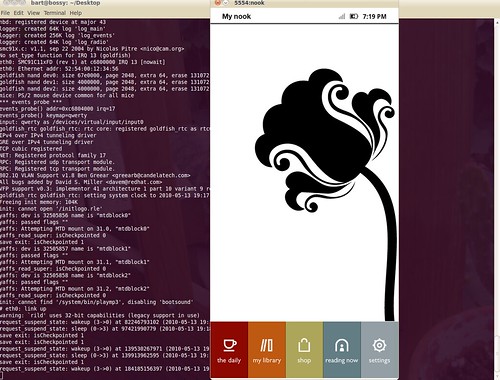

Nook Emulator screenshot

Tuesday, May 4, 2010

Moving with Eclipse to a new workstation

The hard drive on my laptop started clicking quite ominously, so I figured it was time to order a new hard drive. I backed up my photos to the cloud (Flickr and Picasa) and backed up all my music and docs to Dropbox and Google Docs and waited for the new hard drive to arrive. Files are files: you just need to keep a regular backup; and email already lives in the cloud. That leaves my development environment. Here are the steps I've followed to move my development set up to a new computer. 1. open up Synaptic and download Eclipse. There are several Eclipse packages available. I selected the big Eclipse package which includes the JDT (Java Developer Tools) and PDE (plug-in development tools). I've had trouble before when I selected one of the smaller eclipse packages and tried to add the plug-ins I needed separately. 2. Download or copy over the Android SDK. 3. Put the Android SDK tools directory in my PATH in .bashrc b. then type 'bash', so the new .bashrc takes effect. c. type 'adb', to make sure the android SDK tools are in my PATH. 4. open up Eclipse and go to Help->Install New Software... click "add" to add a new tools depository, and add the android developer tools repository: https://dl-ssl.google.com/android/eclipse/. b. once the new depository is loaded, select the Android Developer Tools and Android DDMS and wait for Eclipse to download and install them. 5. moved my private signing key over. 6. moved over my projects and imported them through File->Import... ->Existing Projects into Workspace. b. if you get any errors, try right clicking on the project and select Android Tools->Fix Project Properties 7. Export an app and sign it with the key you moved over. (this is the scary part, if you lose the signing key you used to originally sign your app, you will not be able to provide any more updates to your app in the Android Market!) a. File->Export ... Android->Export Android Application --> select the project you want to Export --> Use existing keystore, (click location to locate it.) type in your password.... 8. Plug your dev phone into your workstation and install the app. a. adb install -r /path/to/YourApp.apk Whoo Hoo! The development environment (for android at least) is all moved over.

Thursday, April 29, 2010

Phone update update: Wow, that was fast

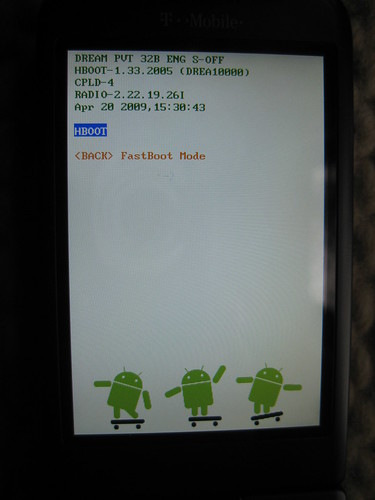
I just updated my G1/dream to CyanogenMod-4.2.15.1 with danger spl. The actual flashing of the 3 different roms (danger-spl, defanged base, cm-4.2.15.1) part only took about 20 minutes. This was after I had already downloaded all of the necessary files, copied them to the SD card and verified my radio version (Settings->About phone->Baseband version). The first time you root your phone it will take a bit longer than this. One of the reasons it is much faster after the first time, is because during the initial rooting process, you load a "recovery utility" that you will use later. Now to wait for CyanogenMod-5.0.7 to drop. So how do I know if the Danger SPL is loaded? (via this cyanogenmod forum post) 1. Turn off phone. 2. Hold the camera button on the side and press the red power button. If you are using Danger SPL, you'll see a white screen with 3 androids riding skateboards. At the top of the screen you'll see the text: HBOOT-1.33.2005 like this: G1/dream android phone: danger spl screen

Updating my android g1 phone to cyanogen 4.2.15.1 with Danger SPL

Tonight cyanogen is releasing 5.0.7 of the cyanogenmod. This is a modified ROM for android phones, that will finally allow g1 phone users like myself to run most of the latest android apps on our phones. It will add most of the Android Eclair functionality to older android phones, except for Live Wallpapers, but I didn't really see myself using any live wallpapers anyway. The one catch is that the new ROM is too big to fit inside the G1's tiny internal memory. The G1 has 64 MB of room for ROMs, and according to Cyanogen no matter how he tried to squeeze the ROM 64 MB was still 4 MB too small. So in order to load the new ROM with the eclair goodies, you need to use an SPL (second program loader), to load the ROM. More info on the Danger SPL. So in anticipation of tonight's release, I am installing the Danger SPL on my phone. The danger spl how to at cyanogenmod.com says that the pre-requisites are a rooted G1/Dream phone (check) and a compatible radio, with links to the radio images. So I downloaded the radios, but nowhere in the rest of the article did it mention what to do with the radio images. I was worried, but then I realized you just need to have one of the radios currently on your phone or you need to install one of the images I downloaded. After searching the interweb for how to check which radio is installed on your phone, I found this article, which says look in your phone under: Settings->About Phone->Baseband version, the last part of the number is your radio version. In my case its 2.22.19.26I, which is compatible! So on to updating the ROM!

Monday, April 26, 2010

Drupal 7: What you need to know

This is the video that inspired me to download and test Drupal 7. Good, informative video!

Test several websites on your computer at once

After watching several videos from last week's DrupalCon I had an itch to try out Drupal 7 for myself. The problem was I already had a site I was testing on my laptop. I could've downloaded it to my test server, but I've been testing alot lately at coffee shops with spotty wifi, so I decided I'd add some entries to my hosts file instead and write up a quick How-to. (pre-requisites: You must have apache, php and mysql already running on your workstation. On ubuntu this is as simple as opening synaptic and searching for each of these packages and installing them: apache2, php5, mysql.)

Multiple development websites in 3 steps.

1. Edit your hosts file. On Linux this is located at /etc/hosts. On Windows machines (XP, Vista, Windows 7) it is located at %SystemRoot%\system32\drivers\etc\hosts. On Mac OS X, its located in: /private/etc/hosts add a new entry for each website you want to test (don't worry you can add more later): 127.0.0.1 d7 127.0.0.1 d6 in this case I added two entries: one to test drupal 6, and a second to test drupal 7. To check that everything is working, open up a teriminal and ping d7 you should see something like this:
$ ping d7
PING d7 (127.0.0.1) 56(84) bytes of data.
64 bytes from localhost (127.0.0.1): icmp_seq=1 ttl=64 time=0.044 ms
64 bytes from localhost (127.0.0.1): icmp_seq=2 ttl=64 time=0.047 ms
64 bytes from localhost (127.0.0.1): icmp_seq=3 ttl=64 time=0.051 ms
64 bytes from localhost (127.0.0.1): icmp_seq=4 ttl=64 time=0.055 ms
2. Edit your Apache config file Add a <VirtualHost> entry for each of the test sites:
<VirtualHost *:80>
    ServerName d7
    DocumentRoot /home/bart/Public/drupal-7.x-dev
</VirtualHost>
<VirtualHost *:80>
    ServerName d6
    DocumentRoot /home/bart/Public/drupal-6.16
</VirtualHost>
3. restart apache
$sudo apache2ctl restart
Now you're ready to test the websites by opening up the URLs: http://d7 and http://d6 in a browser. As a bonus: go check out the DrupalCon2010 screencasts at archive.org.

Wednesday, April 21, 2010

Non-destructibly upgrade your android app's database

So your android app is out in the wild with thousands of Happy Users and the Happy Users are begging and pleading for a new feature that requires a new field in your database. However, the aforementioned Happy Users, would quickly turn to Unhappy Users if your next upgrade wiped their data when it restructured the app's database. What to do? Here's how I upgraded my app's Database schema, while preserving all of the user's data. First of all, I use a DatabaseHelper class (that extends SQLiteOpenHelper) that performs some of the basic database needs (create, upgrade). The function we will concentrate on in this post is onUpgrade(). This function is called when the database version, represent with the constant DATABASE_VERSION is changed. Most barebones implementation of this function call will simply drop the app's tables and recreate them with a call to onCreate():
public void onUpgrade(SQLiteDatabase db, int oldVersion, int newVersion) {
    ...
    db.execSQL("DROP TABLE IF EXISTS albums");
    onCreate(db);
}
However, this approach will destroy all of your user's data, (ie the entire 2500+ CD collection they painstakingly entered with the soft keybard--if this were the case perhaps you should add a barcode scanner intent, alas, back to the story.) Which results in a Very Unhappy User (hereafter VUU). The solution, is to check for the app's Database Version and make a call to our friend ALTER TABLE, like so.
public void onUpgrade(SQLiteDatabase db, int oldVersion, int newVersion) {
   if(oldVersion == 2) {
          db.execSQL("ALTER TABLE albums ADD COLUMN hip_again integer");
   } else {
         ...
        db.execSQL("DROP TABLE IF EXISTS albums");
        onCreate(db);
  }
}
There! Now your user's can flag their old CD's with the shifting tides of what's hip. Also note that should add the column in the onCreate method. So that Happy Users of the Future (hereafter HUF), will also have the field available to them:
private static final String DATABASE_CREATE =
          "create table albums (_id integer primary key autoincrement, "
          ...
          + "hip_again integer);";

@Override
public void onCreate(SQLiteDatabase db) {
                 db.execSQL(DATABASE_CREATE);
}
One final thing is to increment the constant DATABASE_VERSION, so that android will call onUpgrade() the next time the app is started:
private static final int DATABASE_VERSION = 3;
That's it.